¶ Modify Stay Dates
¶ A. Overview
The Edit Stay feature allows staff to modify the check-in and/or check-out dates of a reservation directly from the Reservation Details page.
The available date options and the payment handling at confirmation depend on the reservation's Price Type (comp, in-house, booking website, Group or OTA) and its current Reservation Status (checked-in or reserved).
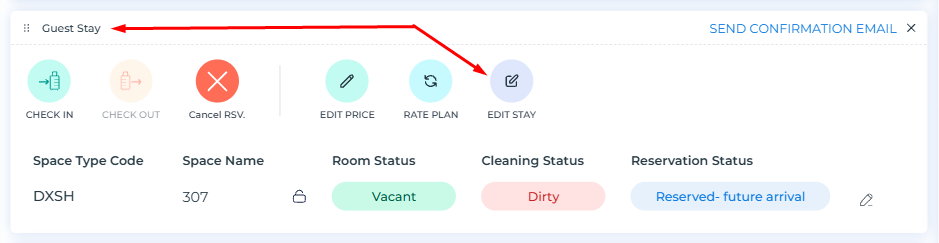
To access the feature, navigate to the Reservation Details page and locate the Guest Stay widget. Click the EDIT STAY button to open the Modify Stay modal.
¶ B. Modify Stay Modal – Step 1: Date Selection
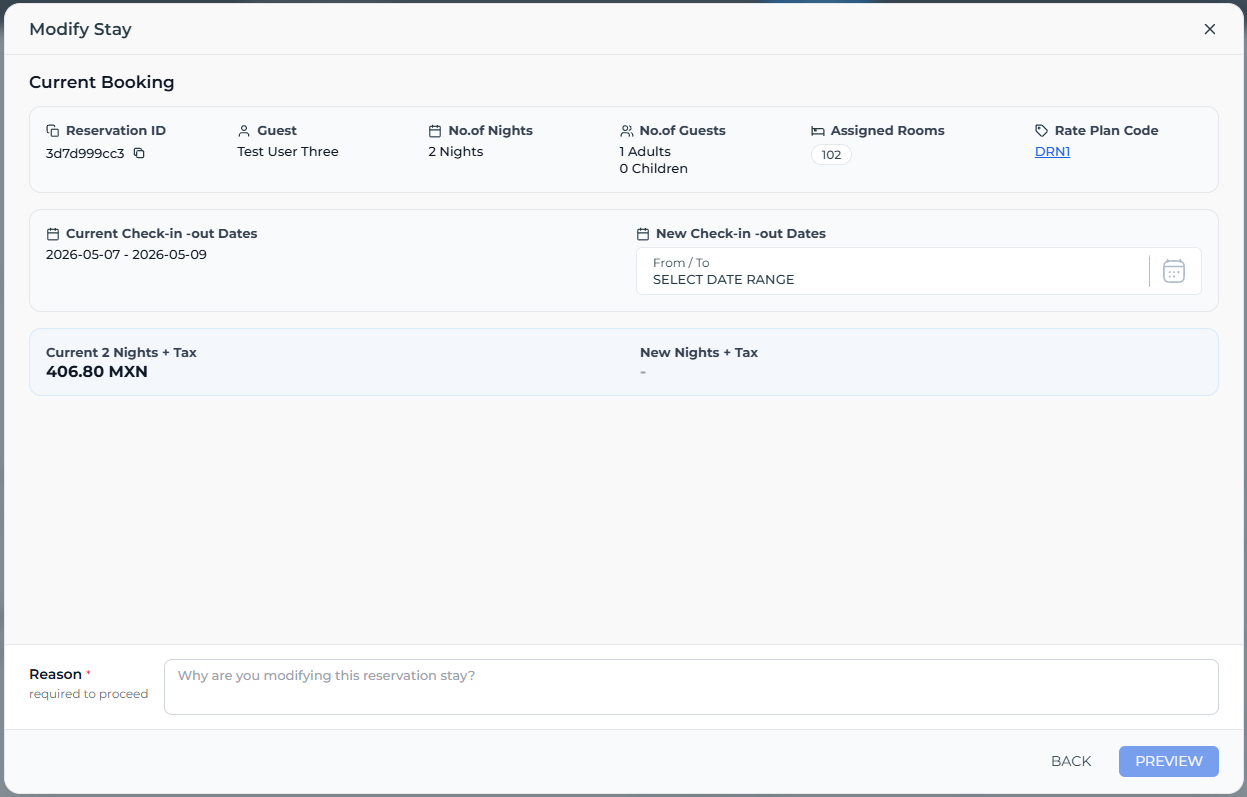
1. Current Booking Summary
At the top of the modal, a read-only summary card displays the key details of the existing reservation:
| Field | Description |
|---|---|
| Reservation ID | The unique identifier for the reservation. |
| Guest | The name of the guest associated with the reservation. |
| No. of Nights | The current number of nights booked. |
| No. of Guests | Number of adults and children. |
| Assigned Rooms | The room number currently assigned. |
| Rate Plan Code | The rate plan applied to the reservation (clickable link to provide more details on the Rate Plan). |
2. Date Fields
Two date blocks are displayed side by side:
- Current Check-in / Check-out Dates: A read-only display of the reservation's existing check-in and checkout dates.
- New Check-in / Check-out Dates: An editable date range picker. Clicking on this field opens an inline calendar.
The New date constraints depend on the reservation's status:
¶ Checked-In Reservations
When a reservation is already checked in, the check-in date is locked and cannot be changed. The calendar pre-fills the check-in date and only allows the staff to pick a new checkout date. This means the stay can only be extended (more nights added) or shortened (nights reduced), but never moved to a date before the original check-in.
Past dates before Today's date are grayed out and not selectable.
The new checkout date must be strictly after today's date. FIRO users cannot set the checkout to today or any past date, meaning the reservation must always be extended or kept to at least one night beyond the current date.
¶ Reserved (Future) Reservations
When a reservation has not yet checked in (status: Reserved – Future Arrival), both the check-in date and the checkout date are fully editable. FIRO users can select an entirely new date range. The calendar grays out any past dates before today; the earliest selectable check-in date is today.
¶ Calendar Interaction
After the date field is clicked, a monthly calendar opens with the following behavior:
- The selected check-in date is shown with a filled dark-grey circle (in case of checked-in reservations).
- Today's date is indicated by an orange-outlined circle.
- The selected range between check-in and checkout is highlighted in light blue.
- Clicking SUBMIT in the calendar confirms the selected date range and closes the calendar.
3. Nights & Tax Comparison:
Below the date fields, a comparison row displays:
- Current X Nights + Tax: The original total price for the reservation.
- New X Nights + Tax: The recalculated price based on the new dates (updated after SUBMIT is clicked in the calendar).
- Difference: Shown when applicable, displayed in green with an upward arrow (↑) for price increases.
4. Select Space Type / Rate Plan:
After the date range is submitted, an additional section appears: Select Space Type / Rate Plan.
This section lists the currently assigned room and indicates its availability for the new date range. Each row shows:
- Room number (the current room assigned to this reservation) with a count of available rate plan options.
- Available badge (in green) confirming the room is available for the new dates.
- A Change button (in orange) to switch to a different room or rate plan if needed.
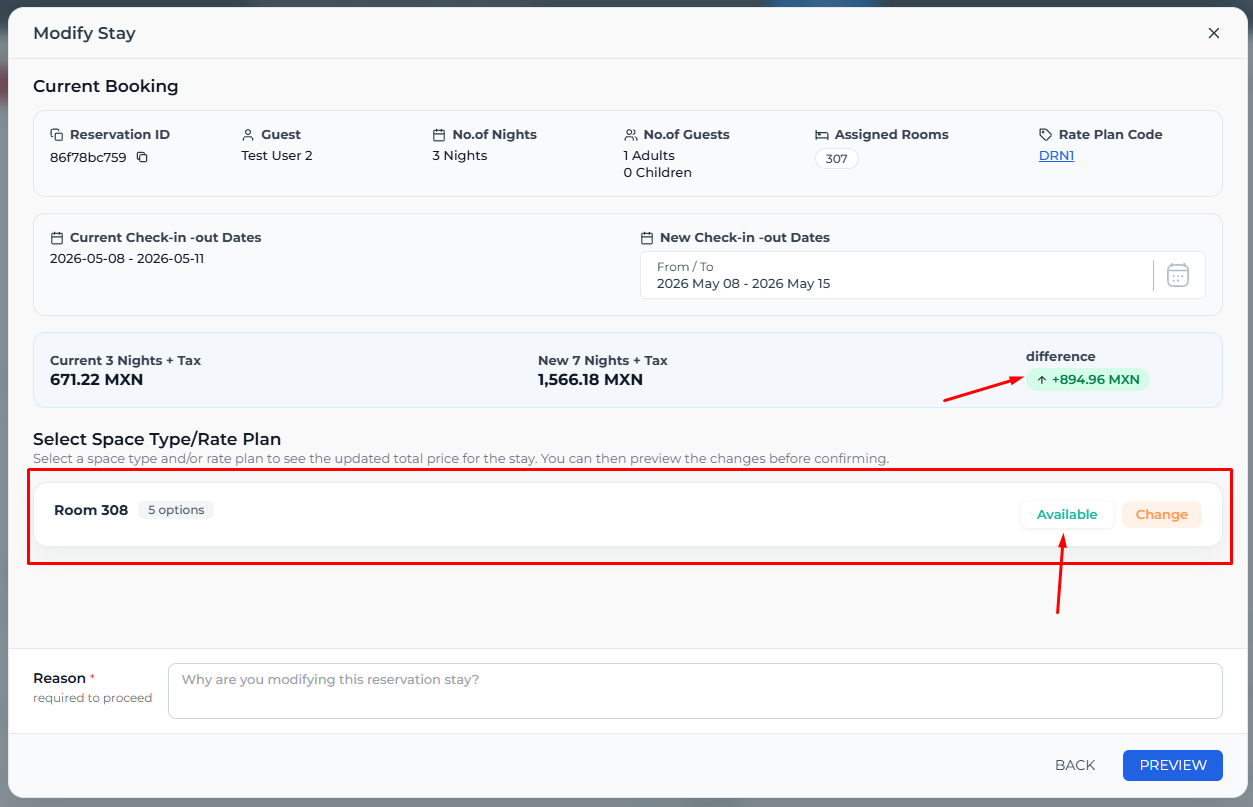
Clicking the Change button expands the room row inline, replacing it with a full list of available space type options for the selected date range. The panel header displays the currently assigned room number along with the total count of available options (e.g., "Room 308 – 5 options"), an Available badge in green confirming the current room is open for the new dates, and a Collapse button to close the panel without making a change.
The space type options are listed as individual selectable rows, each showing the space type name, a pink percentage badge indicating the price difference relative to the original stay, the applicable rate plan code, the minimum total price for the new dates, and a short descriptor line clarifying whether it is the same space type or a different one. Each row has a Select button on the right, except for the currently active selection, which displays a Selected label in blue instead.
The current space type (i.e., the one already assigned to the reservation) is always pinned to the top of the list and highlighted with a green background, making it immediately distinguishable from the alternatives; if it is available. Its descriptor reads "Same space type with same rate plan," indicating no room move is required if this option is chosen, and is selected by default (even without expanding the list of choices).
All other rows in the list represent alternative space types the reservation can be moved to. Their descriptor lines indicate whether the move involves the same rate plan or a different one (e.g., "Changed to different space type with same rate plan").
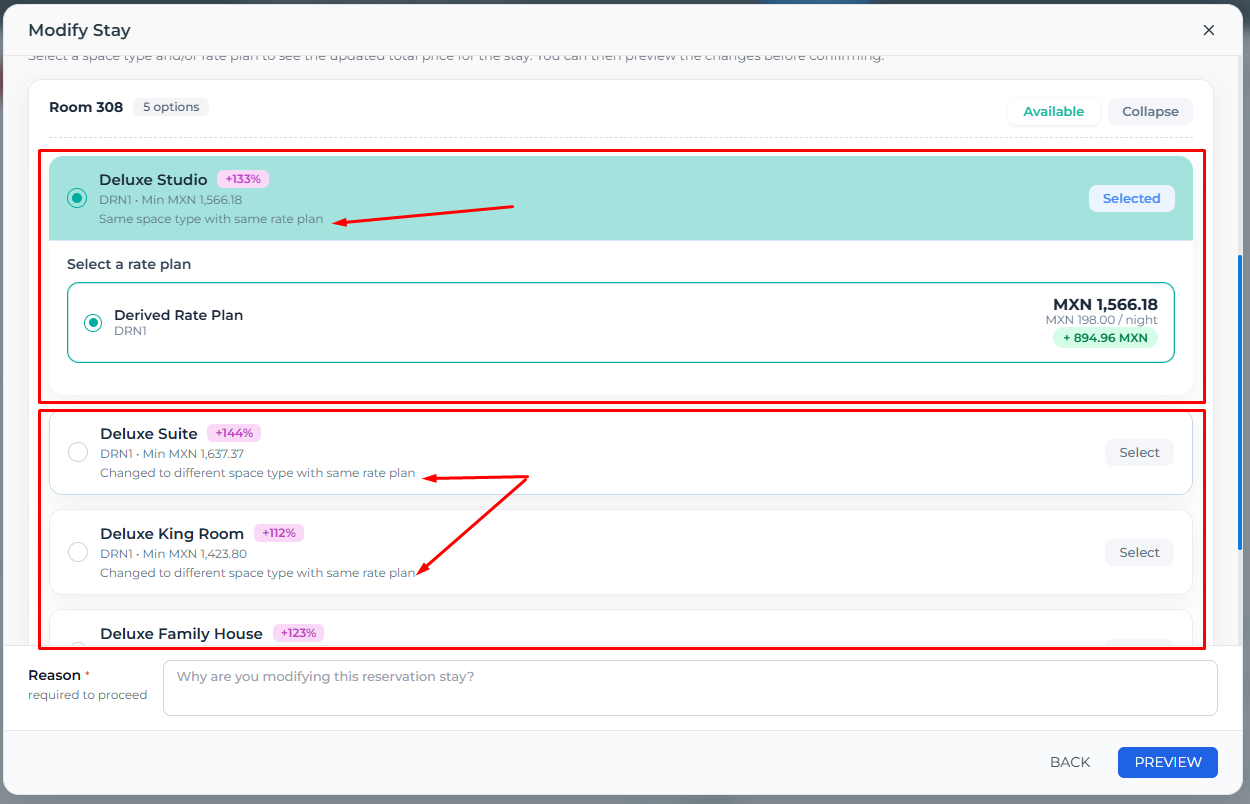
When a space type row is selected (radio button activated), it expands inline to reveal a "Select a rate plan" sub-section listing all rate plans applicable to that space type for the new stay dates. Each rate plan entry shows the plan name, its internal code, the new total price for the full stay, the nightly rate, and the price difference compared to the current booking displayed in green (e.g., "+966.15 MXN"). If the originally assigned rate plan is not available or compatible with the new dates, only the alternative rate plans that are valid for the new stay period will appear in this list, ensuring FIRO user can always select a suitable pricing option even when the original plan cannot carry over.
5. Reason Field:
At the bottom of the modal, a Reason text field is required before proceeding. FIRO users must enter a justification for the stay modification (e.g., "Guest requested extension"). The field is labeled with a red asterisk (*) and the note "required to proceed." The PREVIEW button remains disabled until a reason is entered.
6. Actions:
- BACK: Closes the modal without saving any changes and go back to the reservation details page.
- PREVIEW: Validates the inputs and advances to the preview/payment step. The button is only active once a date range has been submitted, a space type/rate plan is picked/selected and a reason has been entered.
¶ C. Modify Stay Preview – Step 2: Confirmation & Payment
Clicking PREVIEW opens the Modify Stay Preview dialog. This step summarizes the modification and; when payment is due; presents the available collection methods before the change is finalized.
1. Payment Banner
A highlighted banner at the top of the preview dialog indicates whether payment is required:
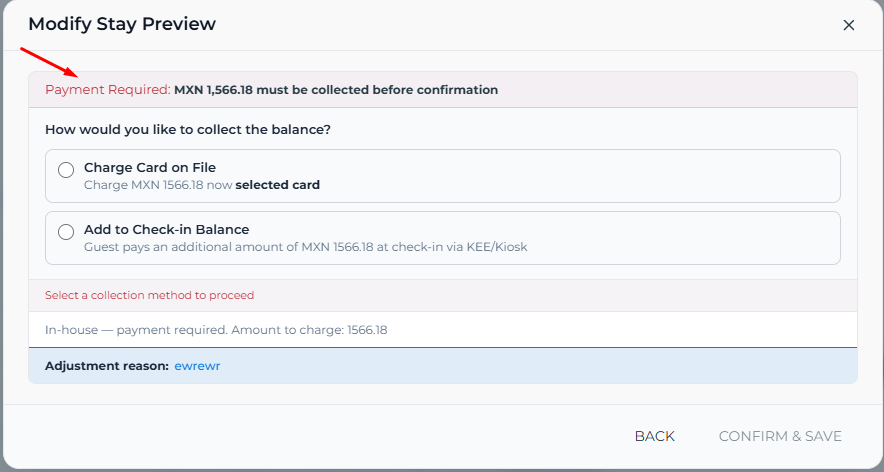
- Payment Required (red banner): Shown when the new total exceeds the amount already paid or when the reservation type requires payment collection. The banner displays the exact amount that must be collected.
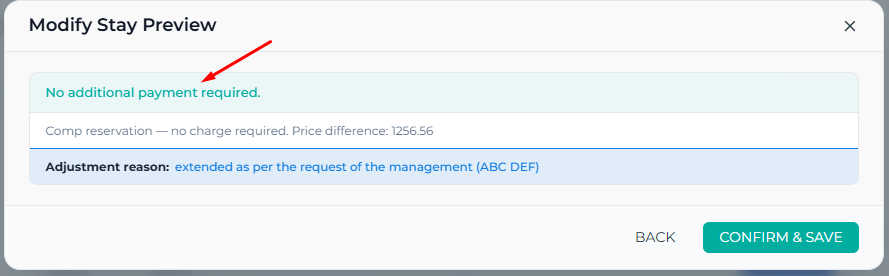
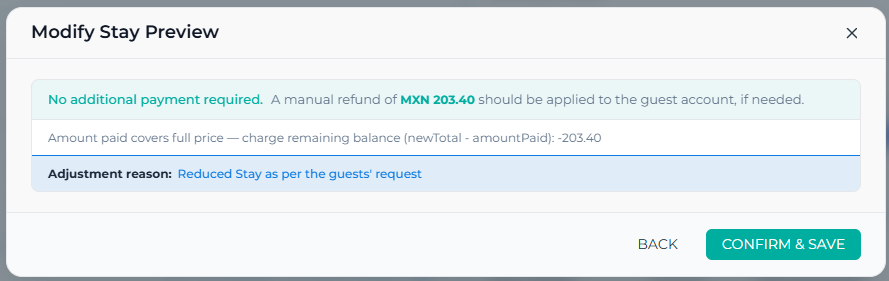
- No additional charge is applicable with a Green banner (e.g., comp reservations or reductions where no refund is triggered by this flow).
2. Payment Collection Options
The question "How would you like to collect the balance?" is displayed when a charge is due. Staff must select one of the following options before the CONFIRM & SAVE button becomes active:
¶ Option A – Charge Card on File
Selecting this option will charges the outstanding balance to one of the guest's saved payment cards. Upon selection, a required Card dropdown appears listing all saved cards on the guest's profile. Staff must select a card from the dropdown to proceed.
Sub-label: "Charge [amount] now to selected card."
¶ Option B – Add to Check-in Balance
Selecting this option does not charge the guest immediately. Instead, the extra amount is added to the guest's pending check-in balance, which will be collected at the time of physical check-in via the KEE app or the Kiosk terminal.
Sub-label: "Guest pays an additional amount of [amount] at check-in via KEE/Kiosk."
¶ No Payment Required (Comp & Bill to Master Folio)
In the following scenarios, no payment collection option is presented and the stay modification can be confirmed directly:
- Comp reservations: The reservation is complimentary (free of charge). Additional nights do not generate a billable difference for the guest.
- Group reservations with Billing Type set to Bill to Master Folio – The guest's stay charges are covered by the group's master folio; the individual guest is not charged directly.
3. Summary Information
Below the payment options, two read-only lines provide context:
- A short description of the charge rationale (e.g., "In-house — payment required. Amount to charge: [amount]" or "Amount paid below new total - charge shortfall (newTotal - amountPaid): [amount]").
- Adjustment reason: Displays the reason text entered in Step 1, shown in blue.
4. Actions
- BACK: Returns to Step 1 to adjust the dates, room, or reason.
- CONFIRM & SAVE: Finalizes the stay modification. This button is only enabled once a collection method has been selected (when payment is required). Upon confirmation, the reservation dates are updated, any charges are processed according to the selected method, and the folio is adjusted accordingly.
Once the stay modification is confirmed and saved, the system automatically records the change in two places to ensure full traceability:
- Reservation Log: A new entry is appended to the reservation's log history capturing the full before-and-after context of the modification. The log includes the old check-in and checkout dates, the new check-in and checkout dates, and the reason provided by the staff member. The log entry follows this format:
Modified stay dates from (2026-05-04 – 2026-05-06) to (2026-05-04 – 2026-05-07) – Stay Extended based on the guest request
- Reservation Note: A note is automatically added to the reservation's notes section. The note is attributed to the FIRO user who performed the action (displayed as the Author) and contains the same reason text that was entered during the modification. This ensures that the rationale for the change is visible directly on the reservation detail page without needing to navigate to the logs.
¶ D. Behavior Summary by Reservation Type
The date editability rules are consistent across all reservation types and statuses: for checked-in reservations, the check-in date is locked and only the checkout date can be modified (to a date strictly after today); for reserved (future arrival) reservations, both the check-in and checkout dates are fully editable, with the earliest selectable date being today. The key distinction between reservation types lies in how payment is handled at the confirmation step.
| Reservation Type | Status | Date Editability | Payment at Preview |
|---|---|---|---|
| FIRO - Comp | Checked-In | Checkout only (must be after today) | No charge — stay is complimentary |
| FIRO - Comp | Reserved | Check-in & Checkout (from today) | No charge — stay is complimentary |
| FIRO - In-House | Checked-In | Checkout only (must be after today) | Charge Card on File or Add to KEE Balance |
| FIRO - In-House | Reserved | Check-in & Checkout (from today) | Charge Card on File or Add to Check-in Balance |
| Booking Website/KEE | Checked-In | Checkout only (must be after today) | Charge Card on File or Add to KEE Balance |
| Booking Website/KEE | Reserved | Check-in & Checkout (from today) | Charge Card on File or Add to Check-in Balance |
| Group - Direct Bill to Master Folio | Reserved | Check-in & Checkout (from today) | No charge — stay is paid by the Group Account Master Folio |
| Group - Direct Bill to Master Folio | Checked-In | Checkout only (must be after today) | No charge — stay is paid by the Group Account Master Folio |
| OTA | - | Cannot be Edited (it should be edited from the OTA channel) | Cannot be Edited (it should be edited from the OTA channel) |