¶ Modify Stay Dates
¶ A. Overview
The Edit Price and Rate Plan features allow staff to manually adjust the nightly room charges and/or change the rate plan applied to individual nights of a reservation, directly from the Reservation Details page. Both actions open the same Modify Reservation Price modal, which contains two tabs: Manual Override and Change Rate Plan.
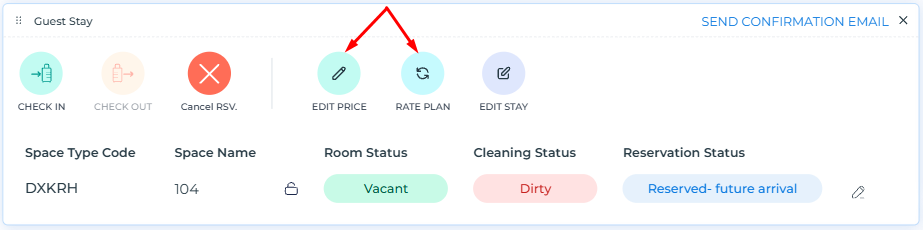
To access the modal, navigate to the Reservation Details page and locate the Guest Stay widget:
- Click EDIT PRICE to open the modal on the Manual Override tab.
- Click RATE PLAN to open the modal directly on the Change Rate Plan tab.
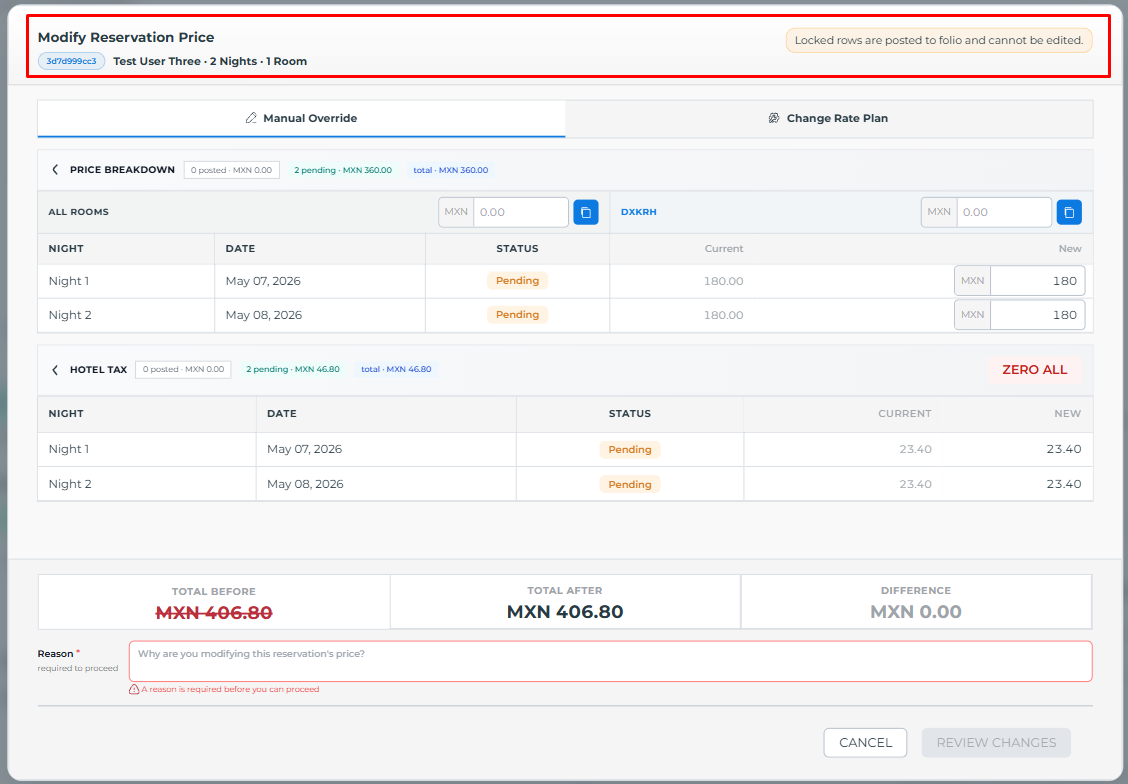
The modal header displays the reservation ID, guest name, number of nights, and number of rooms for quick reference. A notice in the top-right corner reads: "Locked rows are posted to folio and cannot be edited."
¶ B. Manual Override Tab
The Manual Override tab allows FIRO users to set custom nightly prices for individual nights or all nights at once, overriding the rates derived from the assigned rate plan.
¶ 1. Price Breakdown Section
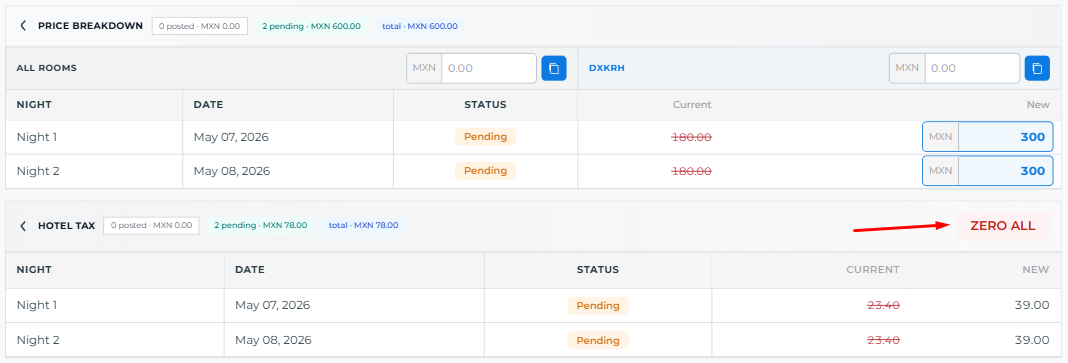
The section header displays a summary of the current charges: the number of posted nights and their total, the number of pending nights and their total, and the combined overall total. A Hide Posted button on the right allows staff to collapse posted rows from view for a cleaner working surface.
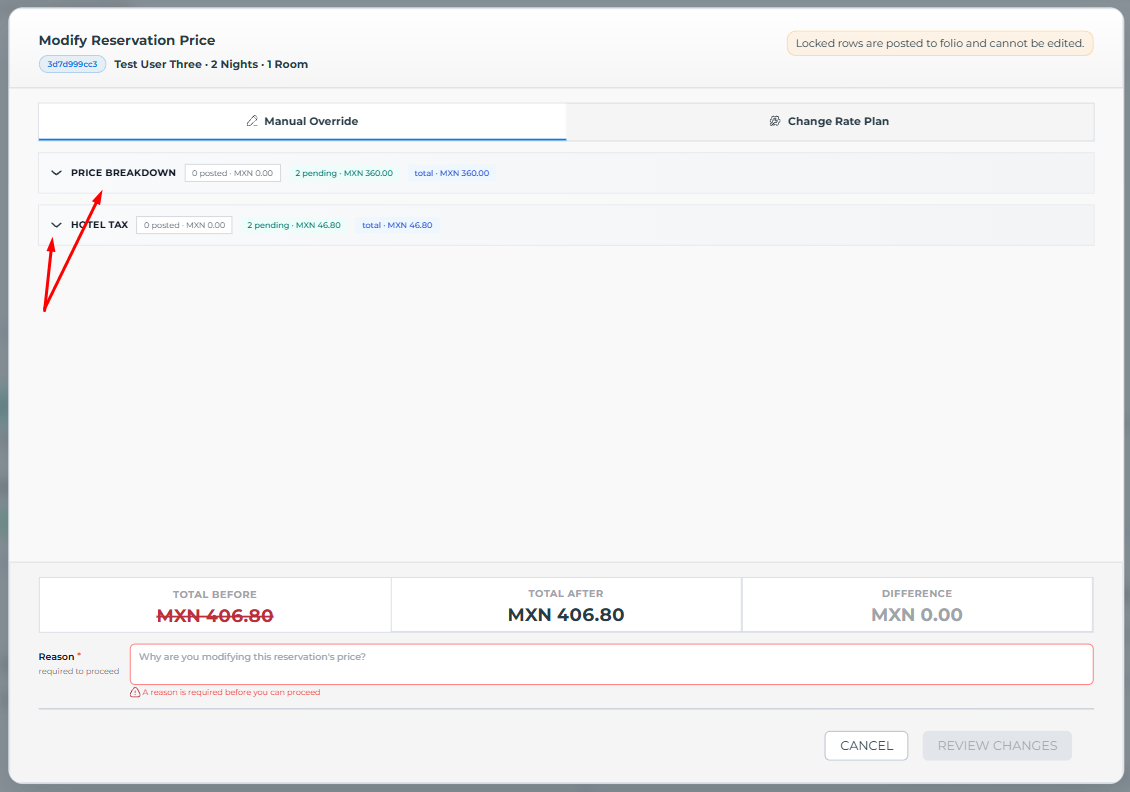
Each charge group (Price Breakdown, Hotel Tax, Amenities) is displayed in its own collapsible sub-section with its own header showing the same posted / pending / total summary.
¶ Night Status: Posted vs. Pending
Each night row in the table shows the following columns: Night label, Date, Status, Current price, and New price input field.
The Status badge is central to understanding editability:
- Posted (green badge) — The charge has already been committed to the guest's folio. Posted rows are read-only and cannot be modified. Their "New" column shows the same value as "Current" with no input field.
- Pending (orange badge) — The charge has not yet been posted to the folio. Pending rows are fully editable and display an active numeric input field in the "New" column, pre-populated with the current rate.
For checked-in reservations, nights that have already passed are posted and locked, while future nights remain pending and editable. For reserved (future arrival) reservations, all nights are pending, so every night row is editable.
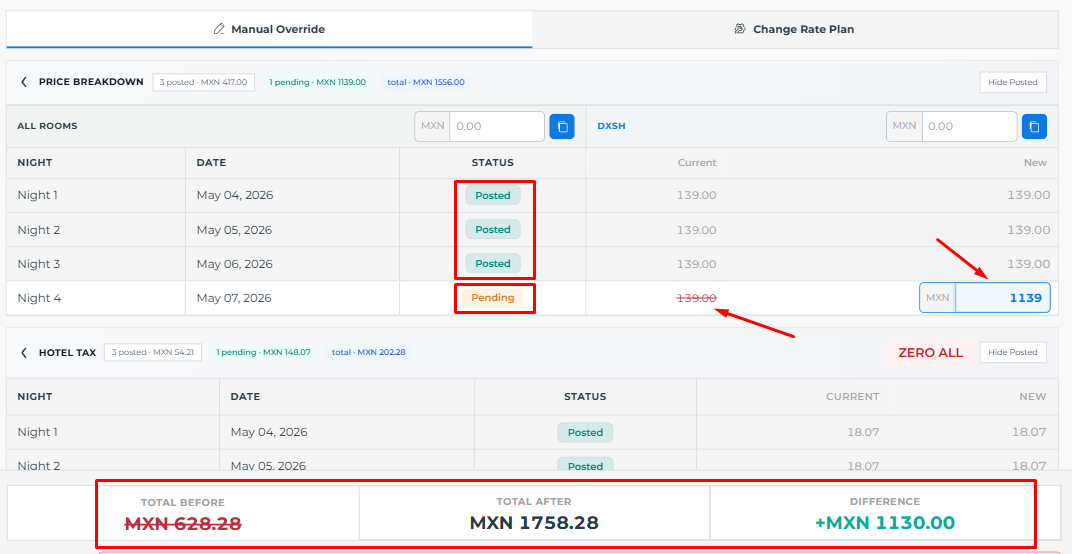
When a pending row's value is changed, the original value appears with a red strikethrough to indicate it has been modified.
¶ Bulk Price Input
Above the night rows, two bulk input controls allow staff to apply a single price to multiple nights at once:
- ALL ROOMS: Entering a value and clicking the blue copy icon applies that price to all pending nights across all rooms.
- [Space Type Code]: Entering a value and clicking the copy icon applies the price to all pending nights for that specific space type only.

¶ 2. Hotel Tax Section
Below the Price Breakdown, a separate Hotel Tax sub-section displays the tax amounts per night, following the same Posted / Pending structure. A ZERO ALL button appears at the top-right of this section, allowing staff to set all pending tax values to zero in a single click. Individual tax rows for pending nights are also editable via their "New" input fields.
¶ 3. Total Summary Bar
Pinned to the bottom of the modal, a three-cell summary bar updates in real time as values are changed:
| Field | Description |
|---|---|
| Total Before | The original total (room + tax) shown with a red strikethrough once any change is made. |
| Total After | The recalculated total based on the new values entered. |
| Difference | The net change between before and after. Shown in teal for a positive difference (price increase) and in red for a negative difference (price reduction). |
When the new total is lower than the original (price reduction), an orange warning banner appears above the Reason field: "A refund of [amount] is due. Please process the refund manually at the front desk."
¶ 4. Reason Field
A Reason text field at the bottom of the modal is required before the review step can be initiated. It is labeled with a red asterisk (*) and the note "required to proceed." If no reason is entered, a validation message reads: "A reason is required before you can proceed." If no price changes have been made, a separate message reads: "No price changes detected — update at least one rate or tax before reviewing."
¶ 5. Actions
- CANCEL: Closes the modal without saving any changes.
- REVIEW CHANGES: Validates the inputs and advances to the confirmation step. Active only when at least one price has been changed and a reason has been entered.
¶ C. Change Rate Plan Tab
The Change Rate Plan tab allows staff to assign a different rate plan to individual pending nights or to all pending nights at once, replacing the currently applied rate plan with a new one that recalculates the nightly price accordingly.
¶ 1. Current Rate Plan
The top-left of the tab displays the Current Rate Plan label and its code (e.g., DRN1), providing a reference point for what is currently applied.
¶ 2. Bulk Apply Control
In the top-right area, a dropdown labeled "— Apply rate plan to all pending —" lists all available rate plans. Selecting a plan from this dropdown and clicking the APPLY button instantly updates the rate plan for all pending nights in the table at once. A Hide Posted button is also available here to collapse posted rows from view.
¶ 3. Night Table
The table displays one row per night with the following columns: Night label, Date, Status, Rate Plan, DXSH (MXN), and Tax (MXN).
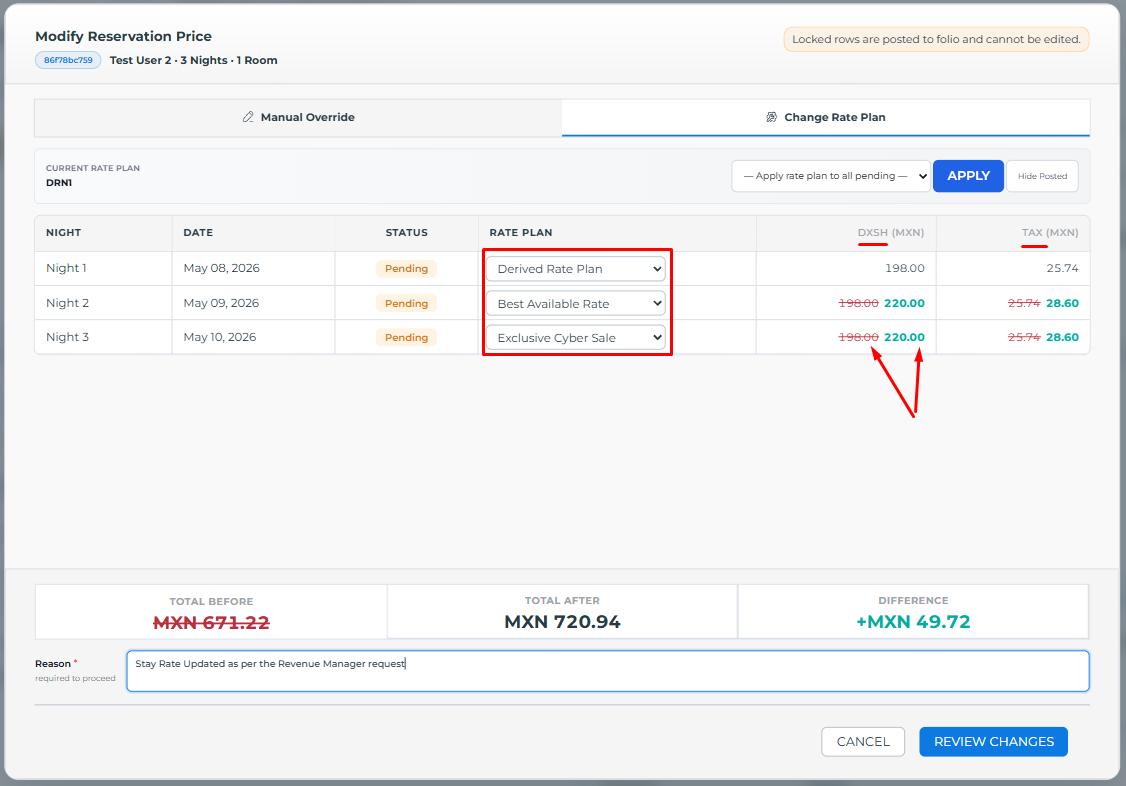
- Posted rows — The rate plan is displayed as plain read-only text. It cannot be changed.
- Pending rows — The rate plan column contains a dropdown selector listing all available rate plans applicable to the reservation. Staff can change the rate plan per night individually. When a different rate plan is selected, the DXSH and Tax values update in real time to reflect the new plan's pricing.
¶ 4. Total Summary Bar
The same three-cell summary bar (Total Before, Total After, Difference) appears at the bottom and updates live as rate plans are changed across nights.
¶ D. Confirm Price Change – Step 2
Clicking REVIEW CHANGES (from either tab) closes the editing view and opens the Confirm Price Change dialog, which presents a final summary before the modification is saved.
¶ 1. Change Table
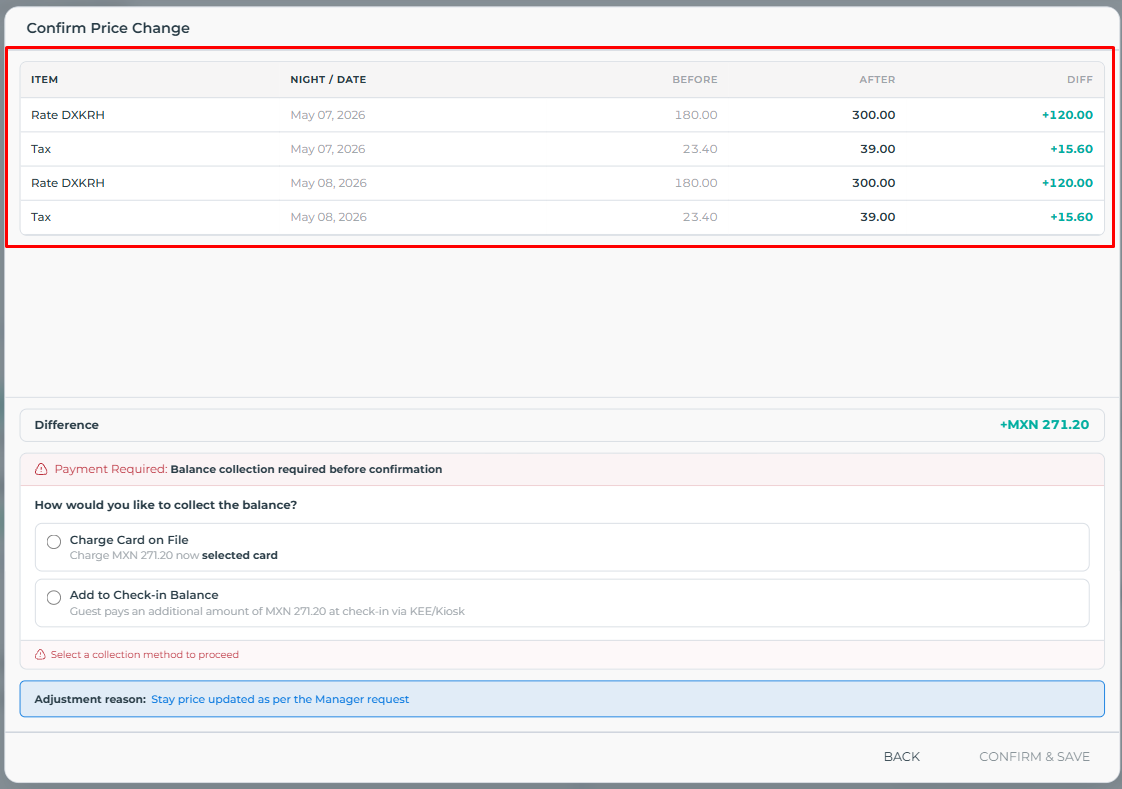
A table lists every modified line item with the following columns:
| Column | Description |
|---|---|
| Item | The charge type and space type code (e.g., Rate DXSH, Tax). |
| Night / Date | The specific date of the modified night. |
| Before | The original value before the change. |
| After | The new value after the change (shown in bold). |
| Diff | The difference between before and after, displayed in teal for increases and in red for decreases. |
¶ 2. Difference Summary
Below the table, a Difference row shows the total net change across all modified items, in teal (positive) or red (negative).
¶ 3. Payment Handling
The confirmation step handles payment differently depending on the reservation type and the direction of the price change:
No additional payment required — Displayed with a green checkmark when the reservation is of type comp (complimentary) or when the price change does not trigger a balance collection requirement. The modification can be confirmed immediately.
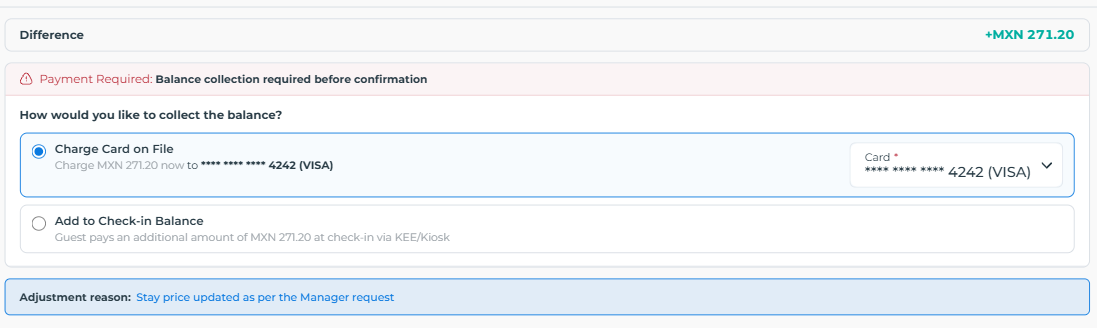
Payment Required: Balance collection required before confirmation — Displayed with a red banner when the reservation type requires payment (e.g., in-house or booking website). Staff must select one of the following collection methods before the CONFIRM & SAVE button becomes active:
- Charge Card on File: Charges the new total immediately to a saved card. A required Card dropdown appears to select from the guest's saved payment cards.
- Add to Check-in Balance: Defers collection to the check-in kiosk/KEE terminal. The guest will be charged the updated amount at physical check-in.
¶ 4. Adjustment Reason
The reason entered in Step 1 is displayed at the bottom of the confirmation dialog in a highlighted row labeled Adjustment reason, shown in blue for reference.
¶ 5. Actions
- BACK: Returns to the editing step to make further adjustments.
- CONFIRM & SAVE: Finalizes the price or rate plan change, updates the folio, and closes the modal. This button is only enabled once all required inputs (collection method when applicable) are satisfied.
¶ E. Behavior Summary by Reservation Status
| Condition | Night Rows | Editable? | Payment at Confirmation |
|---|---|---|---|
| Checked-In — nights already passed | Posted | No (locked) | N/A |
| Checked-In — future pending nights | Pending | Yes | Based on price type (comp/group Direct bill to master folio = no charge; in-house/booking web/kee = saved card) |
| Reserved — all nights | Pending | Yes (all rows editable) | Based on price type (Comp/Group Account Master Folio = no charge; in-house/booking = saved card or check-in balance) |
| OTA reservations | - | Cannot be Edited | Cannot be Edited |
¶ F. Post-Confirmation Audit Trail
Once confirmed, the system automatically records the price or rate plan change in the reservation's Logs and adds an automatic Reservation Note attributed to the FIRO user who performed the action, including the adjustment reason, following the same audit trail behavior as other reservation modifications.