¶ Working with Linked Reservations
¶ A. Overview
This page explains where linked stays appear in FIRO and how staff link, review, unlink and mark them:
- Reservation Details: the Linked Reservations header and the back-to-back banner in the Guest Stay widget;
- Reservation Calendar: link badges, chain numbers and the back-to-back filter;
- Reservation List: the B2B Review Needed tab;
- the actions Link stay, Approve / Reject, Unlink and Mark as continuing stay.
Every action asks for a reason. The reason is saved in the reservation history and shown in B2B Logs.
¶ B. Reservation Details
1. Linked Reservations header
Under the page title, Linked Reservations shows every stay of the link in arrival order. The current reservation is marked This reservation. Click any other box to open that reservation. Between two stays, an arrow points to the later stay with a label:
- B2B linked (green, solid): the stays are linked.
- B2B Needs Review (orange, dotted): a suggestion is waiting for a reviewer.


2. Back-to-back banner (Guest Stay widget)
The Guest Stay widget shows a banner that explains what will happen on the changeover day. The status chip next to the title shows where the changeover stands:
| Status chip | Meaning |
|---|---|
| Changeover scheduled · date | Linked; the changeover will run on that date. |
| Waiting for the next room to be clean inspected | Room change: the next stay is checked in as soon as its room is clean inspected. |
| Guest moving — previous room open until its departure time | Room change in progress: the guest holds both rooms until the first stay's departure time. |
| Waiting for the guest's check-in | The next stay waits for its guest to finish the check-in steps (payment, pre-check-in, ID verification, pre-authorisation). |
| Blocked — needs attention | The changeover cannot run. The reason is shown in the banner and in B2B Logs. |
| Changeover completed | The first stay was checked out and the next one checked in. |
| Changeover completed with items deferred | Same-guest, same-room changeover done; items such as an open balance or ID verification are asked from the guest in KEE. |
| Changeover closed at end of day | Room change not completed by the end of the business day: the first stay was checked out by the end-of-day run. |
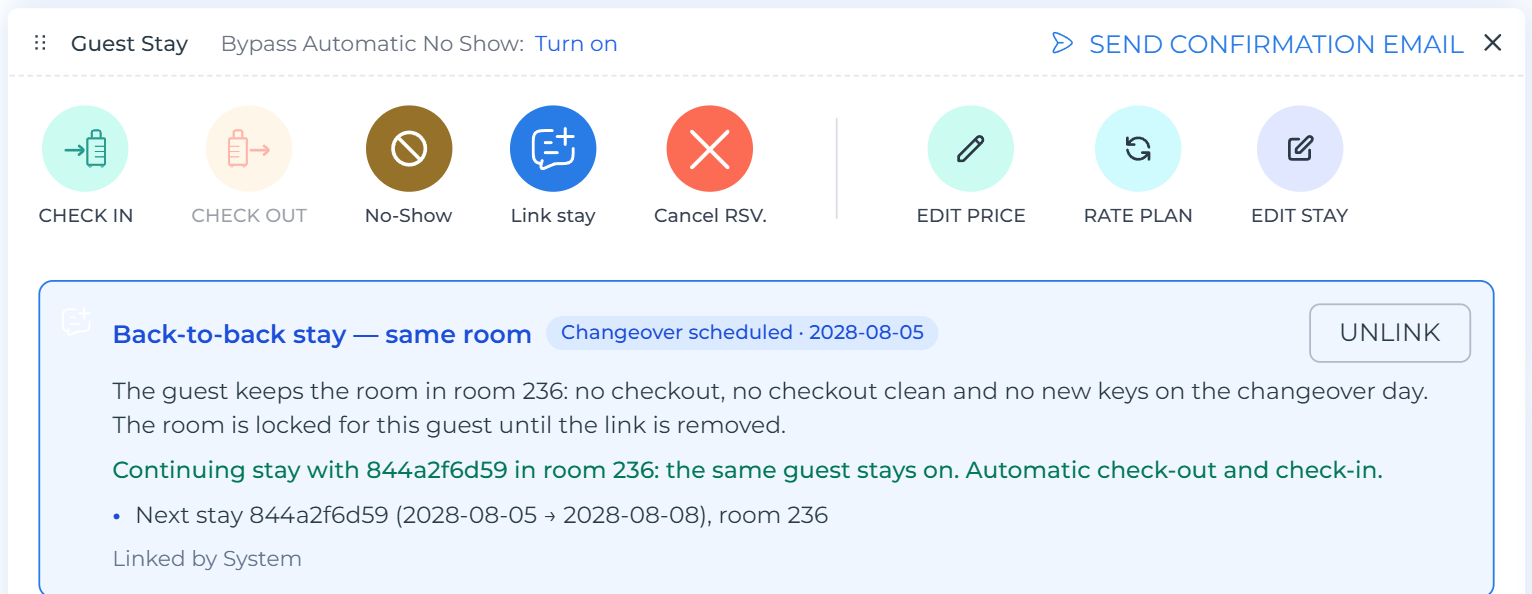
Same guest, same room. The guest keeps the room: no check-out, no checkout clean and no new key. The room is locked for this guest until the link is removed. The green line Continuing stay … the same guest stays on confirms that the changeover runs automatically.
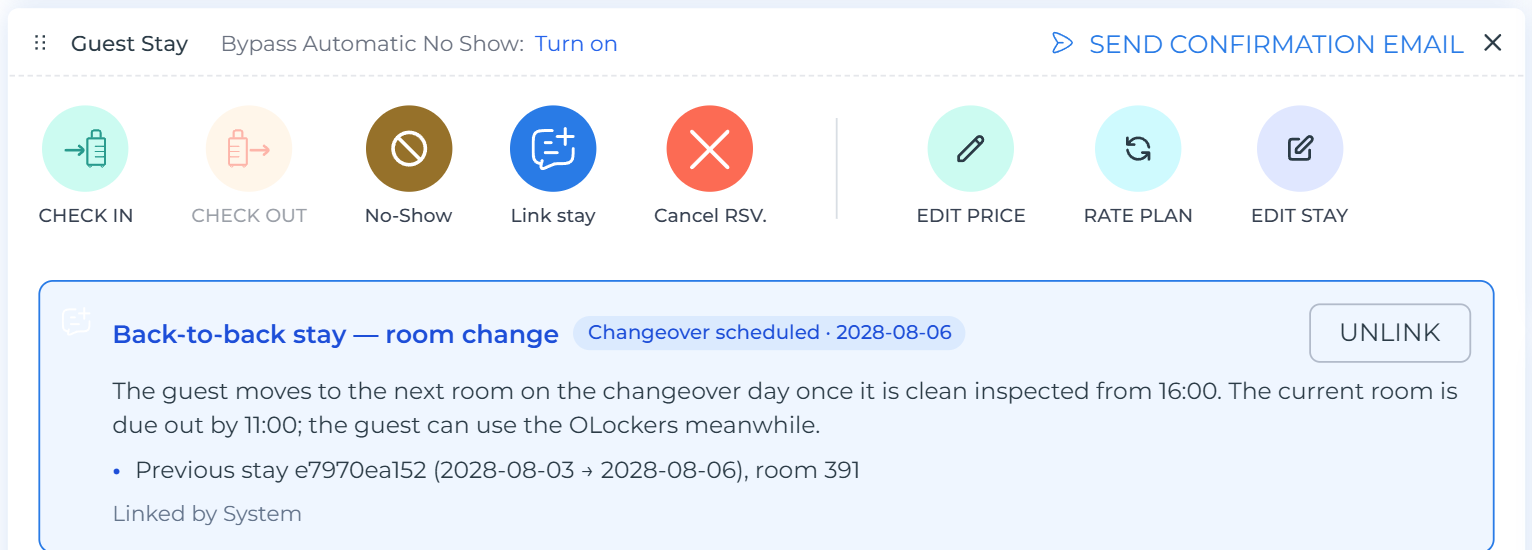
Room change. The guest moves to the next room on the changeover day once it is clean inspected (from the check-in time, or from a bought early check-in). The current room is due out at the check-out time (or at the end of a bought late checkout). The banner names the previous / next stay and the rooms.
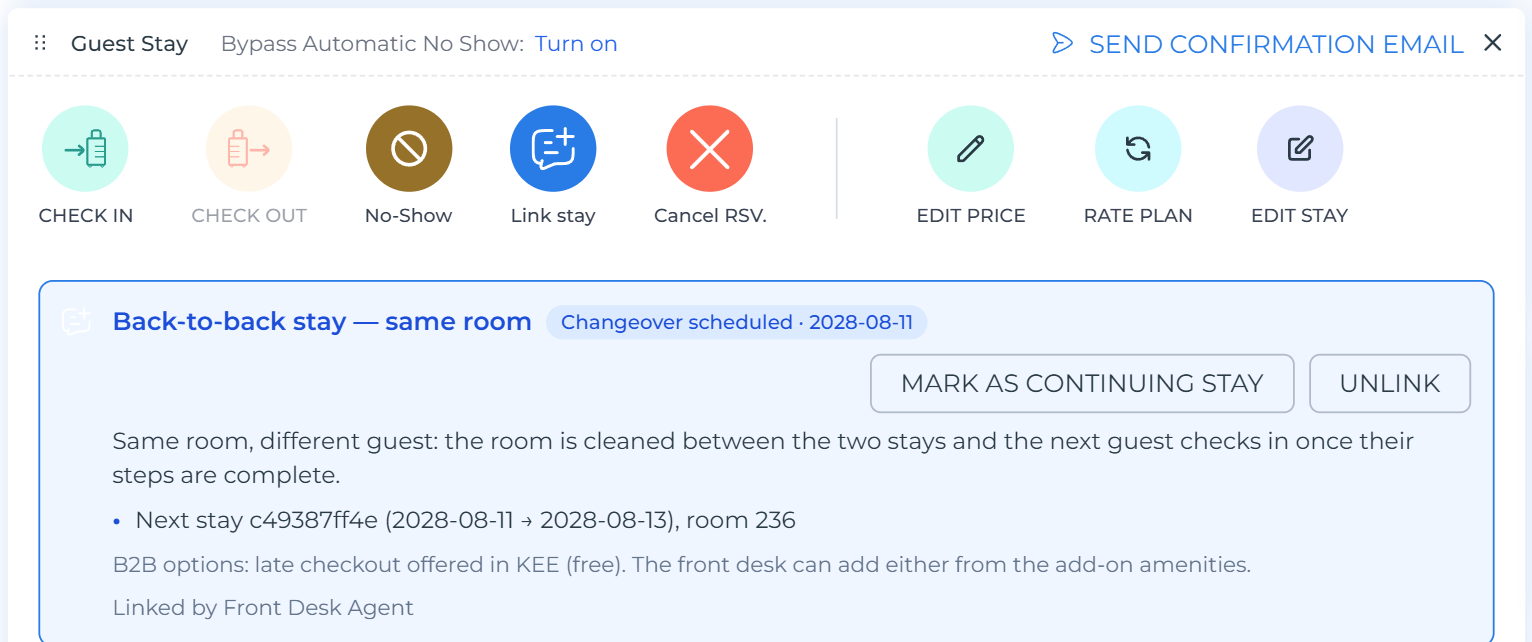
Same room, different guests. Two different main guests in the same room (for example, linked by hand). By default the room is cleaned between the two stays and the next guest checks in once their own steps are complete. If the room should pass directly from one guest to the other, use Mark as continuing stay (section H). The banner also lists the B2B options (late checkout / early check-in) offered or bought.
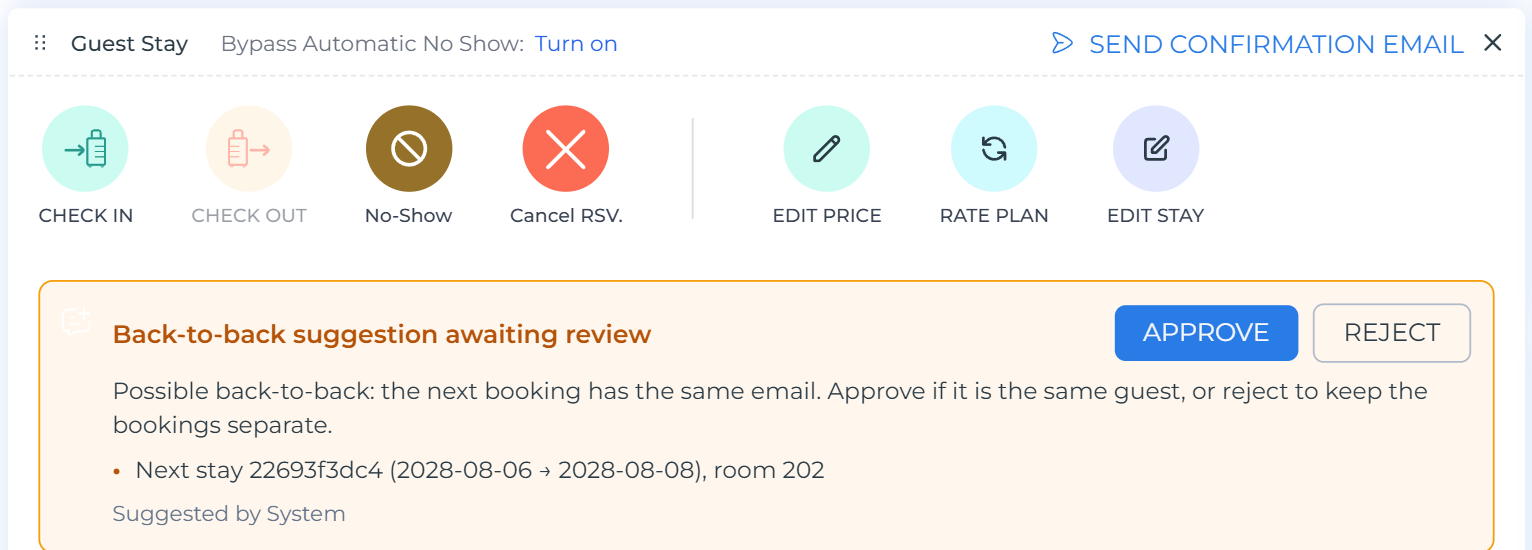
Suggestion awaiting review. The banner shows why it was suggested (for example, the next booking has the same email) and, for users with B2B Review, the APPROVE and REJECT buttons.
3. Other places in Reservation Details
- The room of a linked same-room stay shows a lock. The lock cannot be removed by hand while the link exists; unlink first.
- Check Out of a linked stay tells you before you confirm what will happen to the next stay: it is checked in now, it waits for its other room, or the link is removed (see The Changeover Day).
- Replace Main Guest warns when the reservation is linked. Replacing an OTA, visitor or anonymous guest with the official KEE guest keeps the link. Replacing an official guest with another guest removes it. If the stay is not checked in yet, the new main guest does the online check-in again in KEE: the previous guest's check-in steps are not carried over.
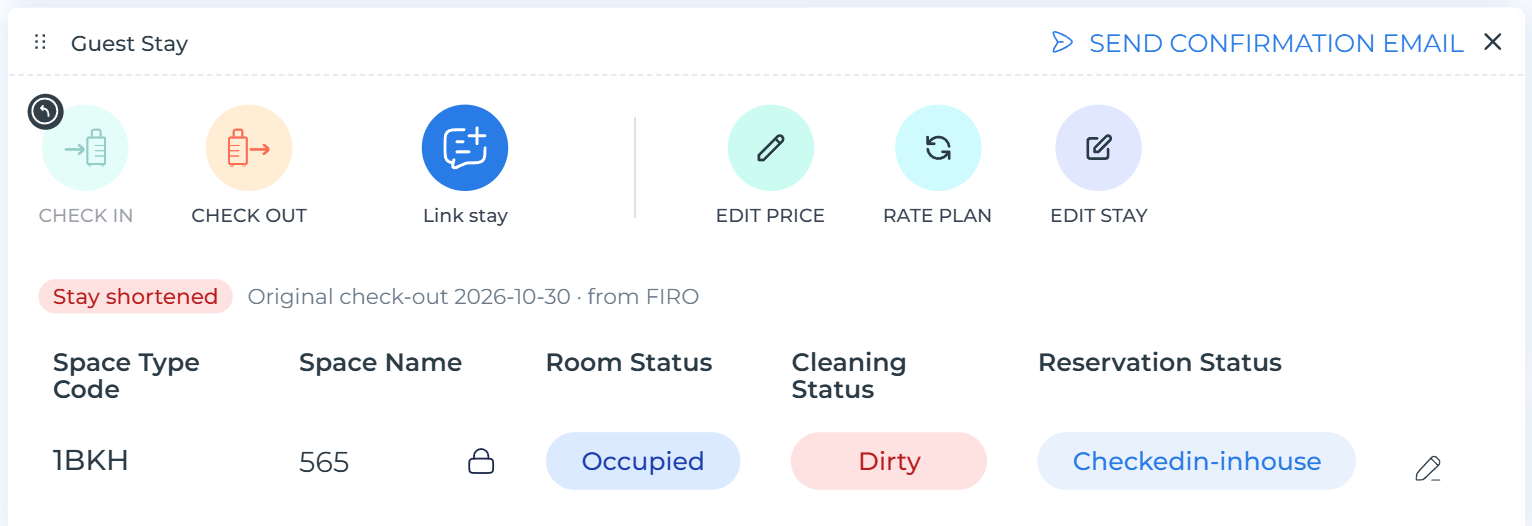
- A stay extended or shortened while the guest is in house shows Stay Extended (original checkout 12 Oct → 15 Oct) or Stay Shortened (original checkout 15 Oct → 13 Oct) in the blue box of the Guest Stay widget, under the reservation actions. For a linked stay the line appears inside the back-to-back banner, under the back-to-back details; for any other stay in a blue box of its own. A stay of two nights or more checked out before its check-out date shows Stay Shortened. The line disappears when the stay is back on its original dates, or when the reservation is cancelled or marked No-Show.
¶ C. Reservation Calendar
Linked stays are marked on the Reservation Calendar:
- Green round badge (link icon) on the changeover between two stays in the same room: linked.
- Orange round badge (clock icon) and dashed outline: suggestion awaiting review.
- Curved arrow from one room to another: a room change (shown on hover, or always with the filter below).
- Hover a linked stay or its badge to outline every stay of the link and show B2B linked / B2B Needs Review.

In the calendar filter panel, tick Only rooms with back-to-back stays (linked or needs review) to keep only the rooms holding a linked stay or a suggestion, including both rooms of a room change. With this filter, every stay of one link has the same colour and a small chain number (1, 2, 3 … per link), and the badges and arrows are always visible. The filter shows as a Back-to-back rooms chip and is cleared with Clear All.

The legend at the bottom of the calendar explains the three back-to-back markers:

¶ D. B2B Review Needed (Reservation List)
Users with B2B Review see:
- one entry B2B Review Needed in the action center (bell icon) with the number of suggestions waiting, updated in place and removed when nothing is pending;
- the B2B Review Needed tab in Reservation › Reservation List, with a red dot while it has entries.
The tab lists every pending suggestion: confirmation codes, guests, both stays, the changeover date, space types, rooms, the reason and when it was suggested. Click a row to open the reservation, where you approve or reject it.

In O Pulse, reviewers with B2B handling › View get one push "B2B reviews needed" with the count, and can approve or reject from the B2B reviews card.
In the reservation list, linked stays carry a B2B tag, and chains above the Max Linked Stay Length carry a RENTAL tag.
¶ E. Link Two Stays by Hand
Required permission: B2B Link. Use it when FIRO did not link two stays that belong together, for example when the guest booked under two different names or a family member takes over the room.
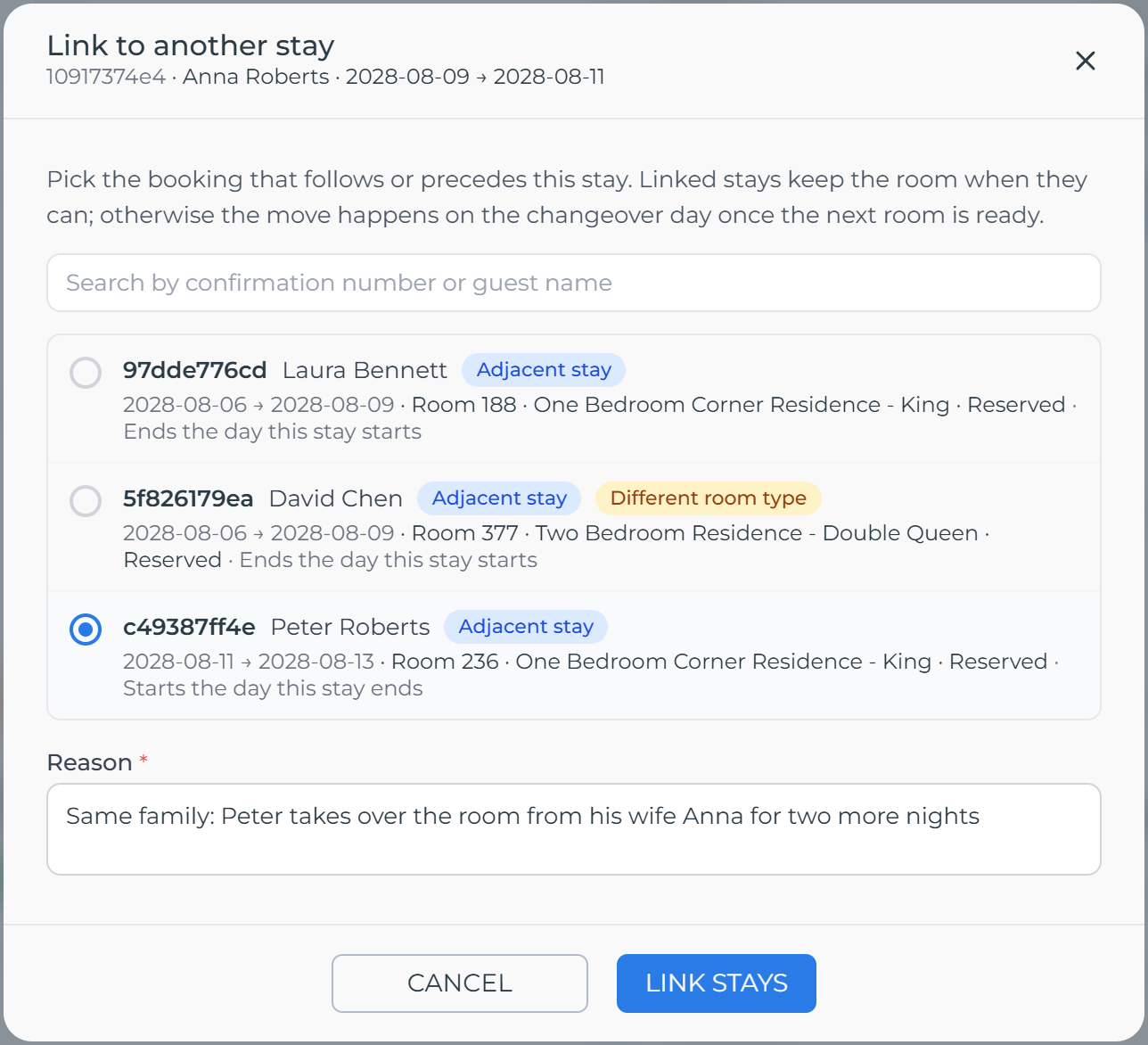
- Open one of the two reservations and click Link stay in the Guest Stay widget.
- The dialog lists the adjacent stays (stays ending the day this stay starts, or starting the day it ends). A Different room type tag means the stays will be linked as a room change. The search box narrows this list by confirmation number or guest name. Only stays that end the day this one starts, or start the day it ends, can be linked. When there are none, the dialog says "No stay ends or starts right next to this one."
- Select the stay, enter a Reason and click LINK STAYS.
Rules:
- The two stays must touch exactly (no night between them, no overlap) and both must be Reserved or Checked-In.
- Different guest names are allowed.
- On a chain, only the first stay can be linked to the stay before it, and only the last stay to the stay after it. Linking the end of one chain to the start of another joins them into one chain.
- Link stay is not available while a suggestion on this stay is waiting for review.
¶ F. Approve or Reject a Suggestion
Required permission: B2B Review.
- Open the reservation (from the B2B Review Needed tab or the calendar).
- Check the banner reason and the two stays.
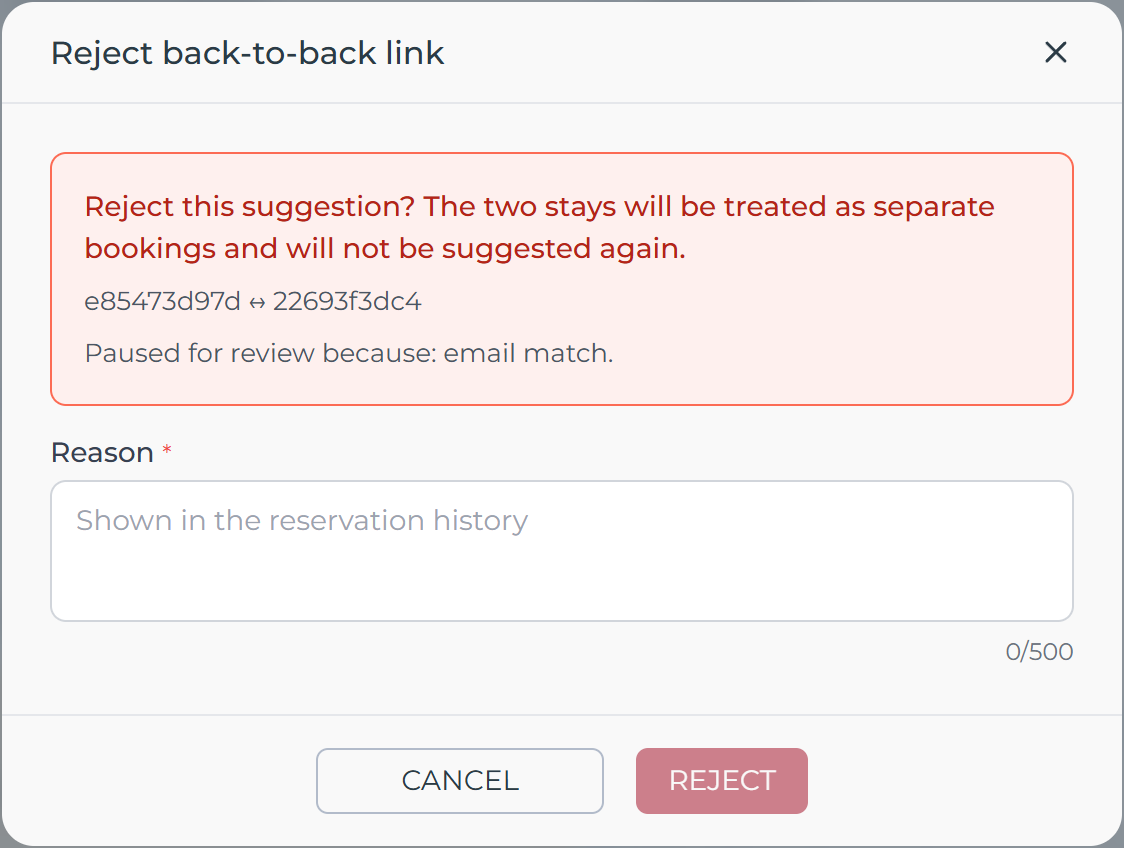
- Click APPROVE if it is the same guest (or the stays should run as one), or REJECT to keep the bookings separate.
- Enter a reason and confirm.
- Approved: the stays are linked, and room assignment, the changeover and housekeeping follow.
- Rejected: FIRO remembers the decision and never suggests the same pair again. You can still link them by hand later.
- A suggestion does not expire. It stays open until it is approved or rejected, the first stay checks out, or one of its stays is linked automatically to a stronger match.
¶ G. Unlink Stays
Required permission: B2B Unlink. Unlinking is possible at any time, also after the next stay is checked in.
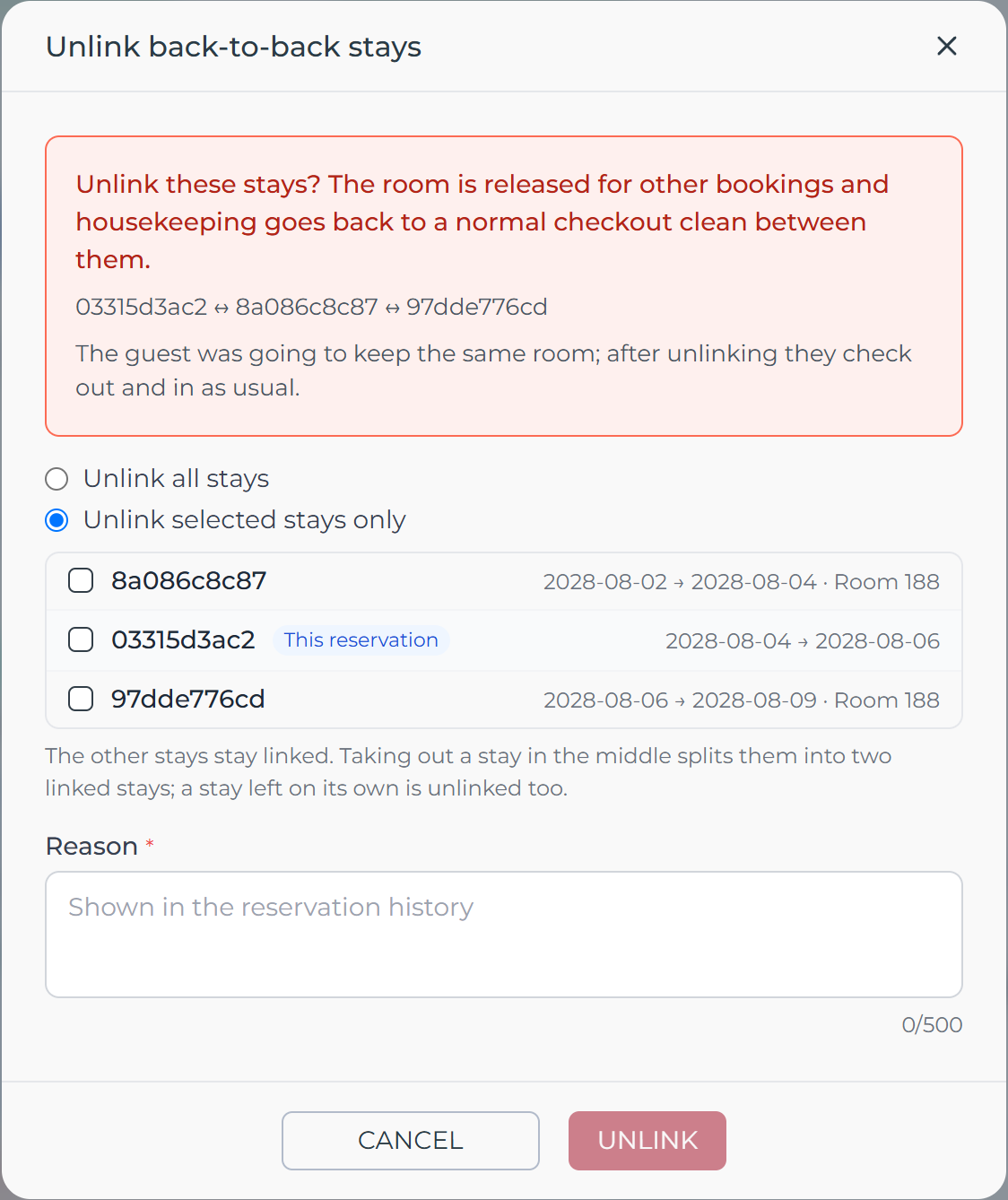
- Click UNLINK in the back-to-back banner.
- For a chain of three stays or more, choose Unlink all stays or Unlink selected stays only and tick the stays to take out.
- Enter a reason and click UNLINK.
After unlinking:
- the room is released for other bookings (the lock goes back to what it was before the link);
- housekeeping goes back to a normal checkout clean between the stays;
- the stays check out and in as usual, and the guest is told;
- taking a stay out of the middle of a chain splits it into two linked chains. A stay left on its own is unlinked too;
- FIRO remembers a staff unlink: it never links or suggests that pair again automatically. You can still link them by hand.
¶ H. Mark as Continuing Stay (Different Guests, Same Room)
Required permission: B2B Continuing Stay. Use it when two different guests should hand the room over directly, without a clean between the stays. Example: the parents leave and their daughter takes over the room.
The button MARK AS CONTINUING STAY appears only on a linked pair where both stays are in the same room, the main guests are different, and the changeover has not started. For the same guest it is not needed: that changeover is already a continuing stay.
- Click MARK AS CONTINUING STAY in the banner.
- Under Guests on both stays, choose whether to add each main guest to the other stay as an invited guest (both ticked by default). A guest with a KEE profile is added at once; a guest without one is invited by email or SMS. A row is disabled, with the reason, when the other stay is full or the guest cannot be invited.
- Enter a reason and confirm.
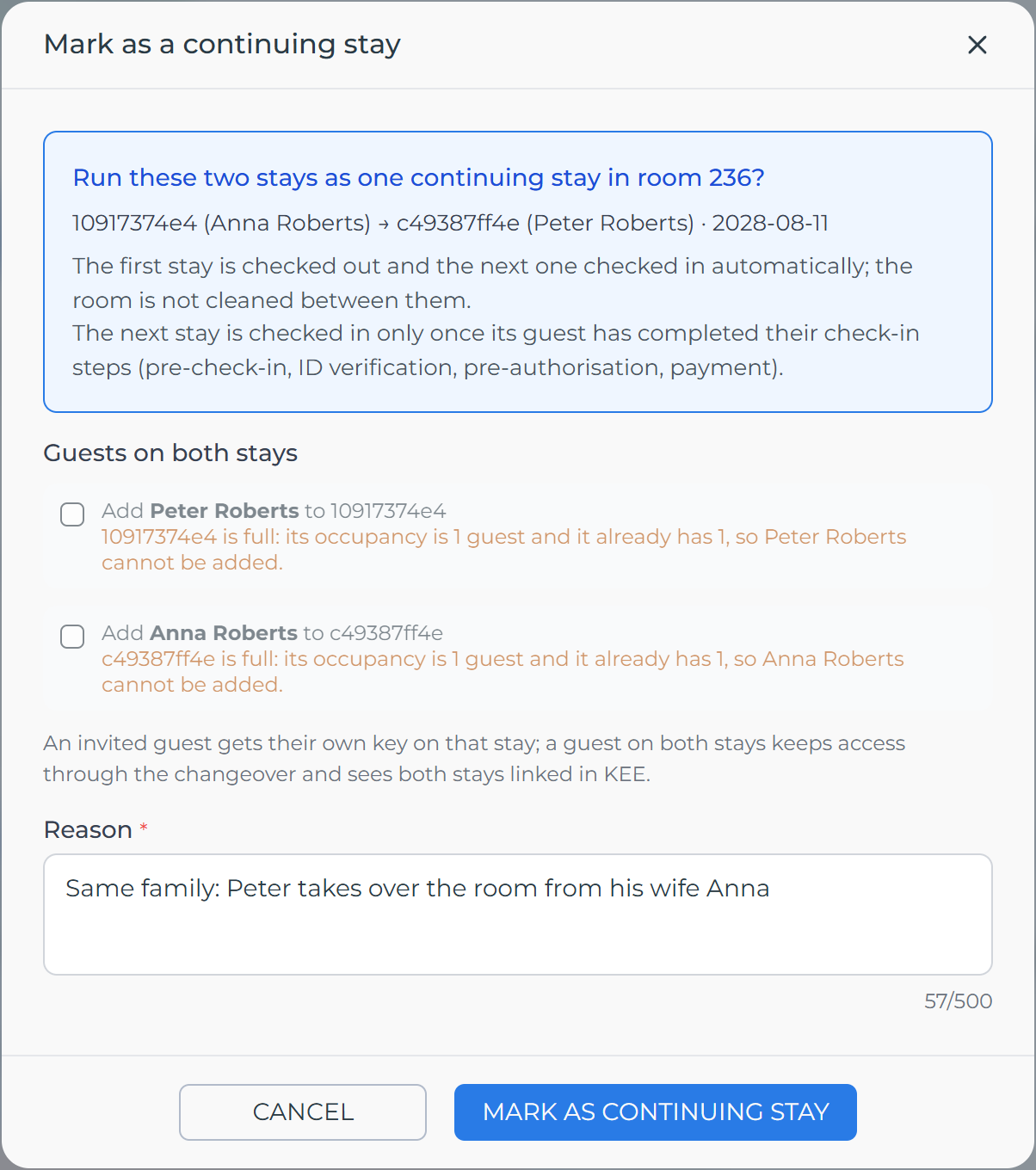
What changes:
- At the changeover the first stay is checked out and the next one checked in automatically. The room is not cleaned between them.
- The next stay is checked in only once its own guest has completed their check-in steps (pre-check-in, ID verification, pre-authorisation, payment). Until then the first stay stays checked in and keeps the room. The guest can complete the steps in KEE from 72 hours before the stay starts; KEE shows Check In until they are done.
- Only a guest who is on both stays keeps room access through the changeover and sees both stays linked in KEE.
- Both reservations show Continuing stay with who marked it, when and why.
To undo it, click Remove continuing stay (reason required) before the changeover starts. The invited guests the mark added are removed and the changeover goes back to normal, with a clean between the stays.